Home / UTX 50000 Games in 1:Upgrades Retro Game Console Stick No Freeze Game Nostalgia Gaming Stick Dual 2.4G Wireless Controllers, Plug & Play TV Video Gaming Stick
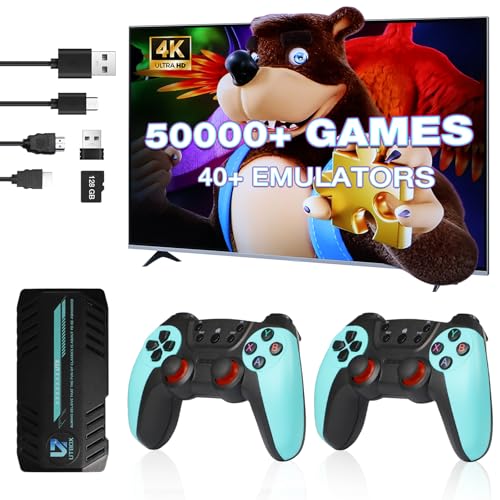
  • UTX 50000 Games in 1:Upgrades Retro Game Console Stick No Freeze Game Nostalgia Gaming Stick Dual 2.4G Wireless Controllers, Plug & Play TV Video Gaming Stick
  • UTX 50000 Games in 1:Upgrades Retro Game Console Stick No Freeze Game Nostalgia Gaming Stick Dual 2.4G Wireless Controllers, Plug & Play TV Video Gaming Stick
  • UTX 50000 Games in 1:Upgrades Retro Game Console Stick No Freeze Game Nostalgia Gaming Stick Dual 2.4G Wireless Controllers, Plug & Play TV Video Gaming Stick
  • UTX 50000 Games in 1:Upgrades Retro Game Console Stick No Freeze Game Nostalgia Gaming Stick Dual 2.4G Wireless Controllers, Plug & Play TV Video Gaming Stick
  • UTX 50000 Games in 1:Upgrades Retro Game Console Stick No Freeze Game Nostalgia Gaming Stick Dual 2.4G Wireless Controllers, Plug & Play TV Video Gaming Stick
  • UTX 50000 Games in 1:Upgrades Retro Game Console Stick No Freeze Game Nostalgia Gaming Stick Dual 2.4G Wireless Controllers, Plug & Play TV Video Gaming Stick
  • UTX 50000 Games in 1:Upgrades Retro Game Console Stick No Freeze Game Nostalgia Gaming Stick Dual 2.4G Wireless Controllers, Plug & Play TV Video Gaming Stick
  • UTX 50000 Games in 1:Upgrades Retro Game Console Stick No Freeze Game Nostalgia Gaming Stick Dual 2.4G Wireless Controllers, Plug & Play TV Video Gaming Stick
  • UTX 50000 Games in 1:Upgrades Retro Game Console Stick No Freeze Game Nostalgia Gaming Stick Dual 2.4G Wireless Controllers, Plug & Play TV Video Gaming Stick

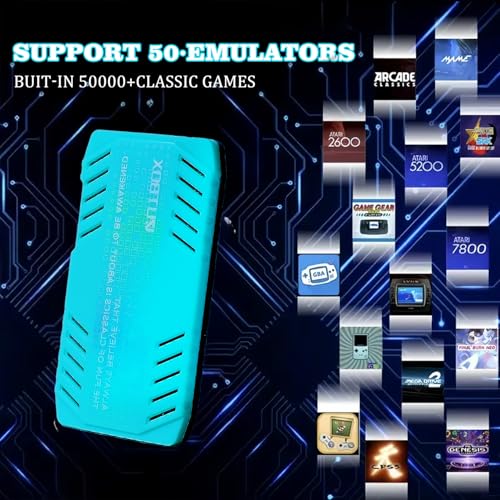
UTX 50000 Games in 1:Upgrades Retro Game Console Stick No Freeze Game Nostalgia Gaming Stick Dual 2.4G Wireless Controllers, Plug & Play TV Video Gaming Stick
$16.8
$59.99
468 sold
Quantity
ADD TO CART
BUY IT NOW
  • Detail

    About this item

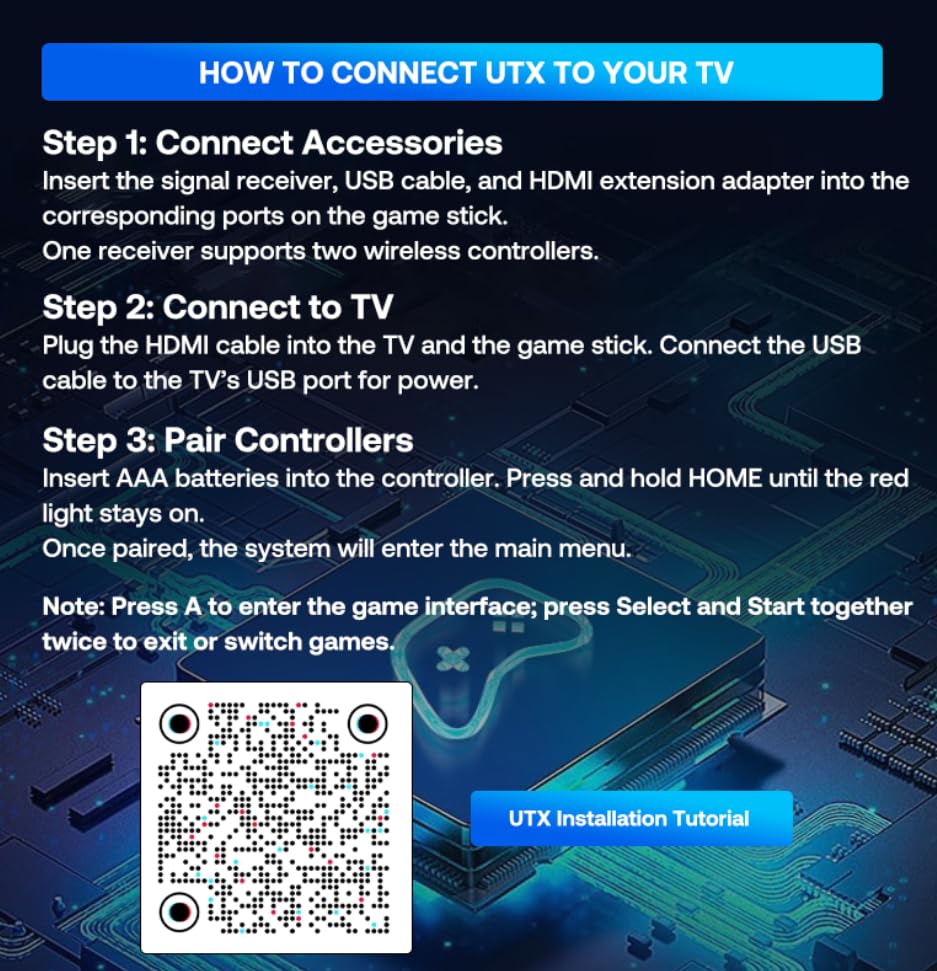
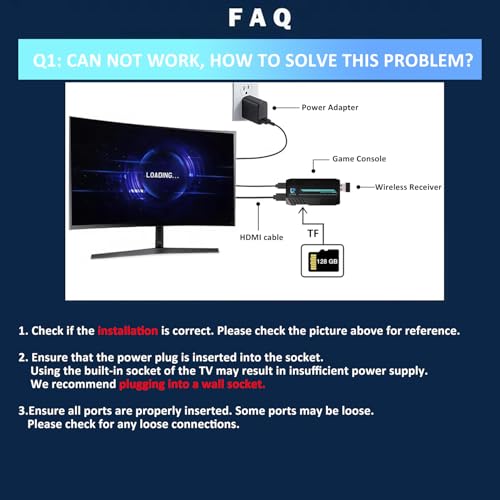
    • How to connect
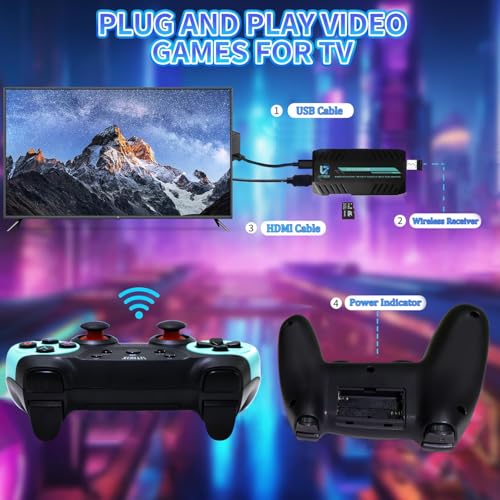
    • Step 1:Connecting the AccessoriesConnect all accessories by inserting the controller receiver, HD cable, andUSB cable into their respective ports on the game stick.
    • Step 2: Connecting to the T'VPlug one end of the HD cable into the HDMI port on your TV and the otherend into the game stick, then connect the USB cable to a USB port on the TV.
    • Step 3: Activating the ControllerInsert the batteries until P1 shows a red light and P2 shows a green light indicatinga successful connection.
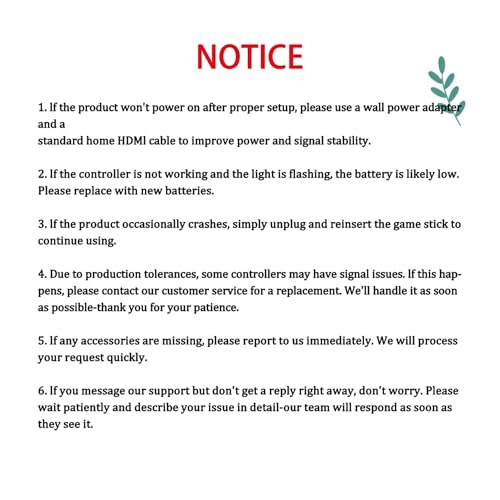
    • Ps: If the controller light keeps flashing after powering on, youneed to unplug the Signal Receive again and plug in the gamepadto restart the operation.
  • Customer Reviews
    No comments